Android
The messenger as a single APK: download it, allow installing from an unknown source and open the file. Android 8.0 or newer.
soty-release.apk · 86 MB
DownloadInstall
The Android app is one APK, the Linux build is an unpacked archive and the relay node is a single binary. Below: what to download, what you need and what the application shows on its first run.
Builds live in the GitHub releases only, next to a SHA256SUMS file.
The latest release: the application for phone and desktop, and the relay node for operators.
The messenger as a single APK: download it, allow installing from an unknown source and open the file. Android 8.0 or newer.
soty-release.apk · 86 MB
DownloadThe same messenger for the desktop. Unpack the archive and run the soty binary; it needs GTK 3 and libsqlite3.
soty-linux-x64.tar.gz · 20 MB
DownloadAn offline delivery and tracker node: one binary that only needs libsqlite3. For operators who run a relay themselves.
dtm_host.bin · 8 MB
DownloadThe requirements are short: no account, no phone number, no email address.
The APK is about 86 MB and is installed by hand: the system asks once whether to allow installing from an unknown source.
An archive of about 20 MB. It needs the GTK 3 and libsqlite3 libraries, which a regular distribution already has.
A relay host is one binary and one database file. The smallest server is enough.
Every release ships a SHA256SUMS file: compare the download before you run it.
Pick what you are installing: the phone app, the desktop app or a relay node of your own. The steps and the screens below belong to the platform you select.
A phone or a tablet: download the APK, install it, create an identity and add the first contact.
Open the releases page and take the soty-release.apk file. The SHA256SUMS file and the release notes are right there.
Do not take an APK from third-party sites. This file is built from the project sources, and only releases can be checked against a published checksum.
Open the downloaded APK. Android warns about installing from an unknown source: allow it for the application you opened the file from, a browser or a file manager, and confirm the installation. Internet access is not required — without a network the app works over a mesh, while the local database is needed either way.
Android 8.0 or newer is required. If the system says the file is damaged, download it again: the transfer was interrupted.
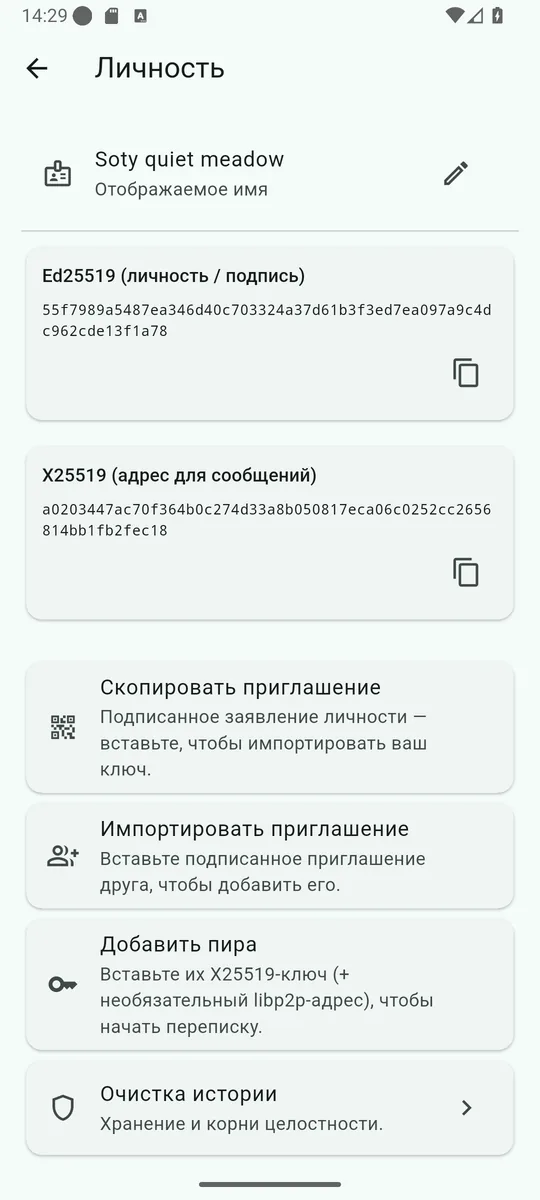
There is no sign-up: on the first run the app creates a key pair on the device and asks for a display name. The name is signed into the invite that others import to add you, while the Ed25519 and X25519 keys live on the Identity screen, where the invite is copied from.
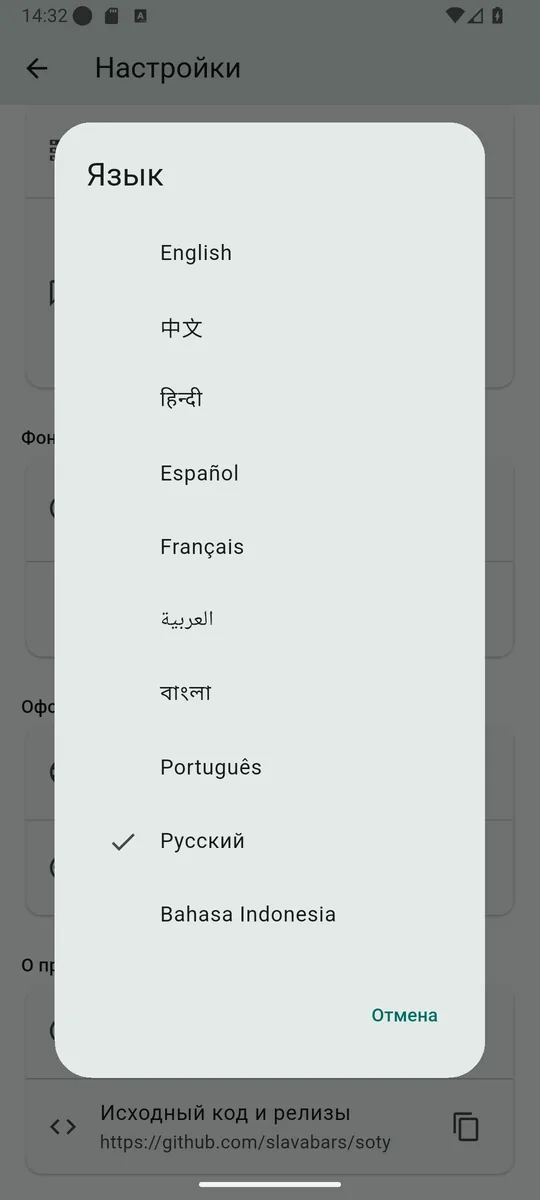
The first screen comes up in English: the app does not know which language you will pick yet. Russian is switched on in the next step and stays for every later launch.
Settings → Appearance → Language: the list holds ten languages, Russian among them. The row below is the theme: system, light or dark.
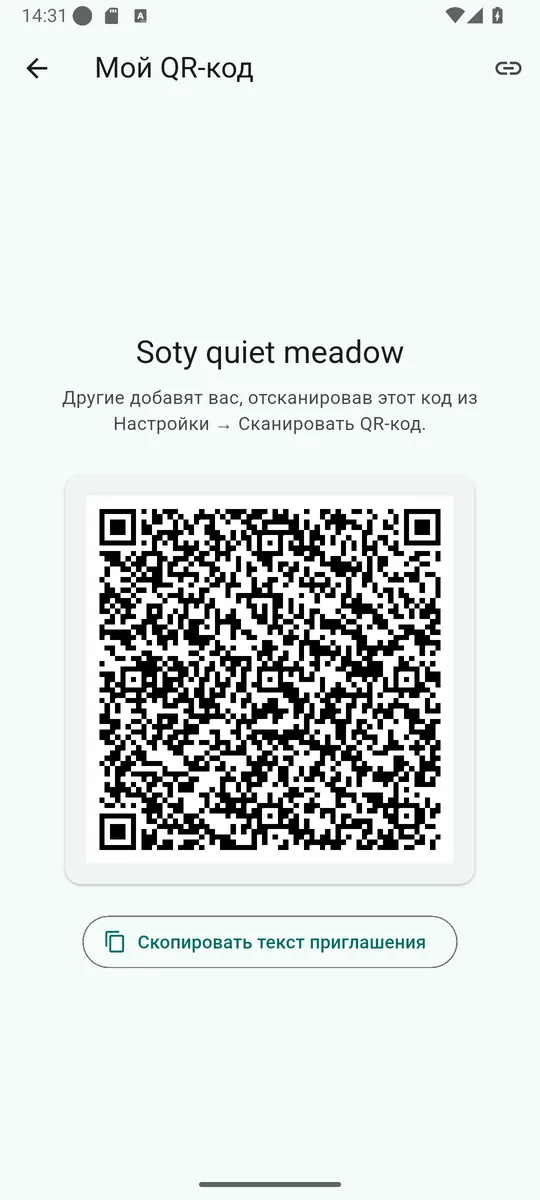
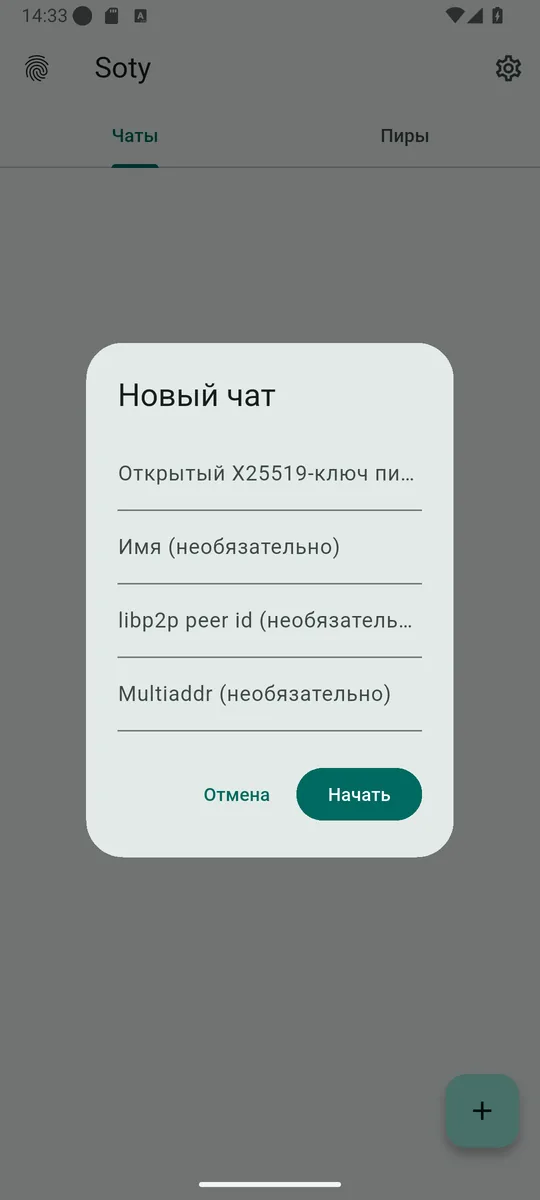
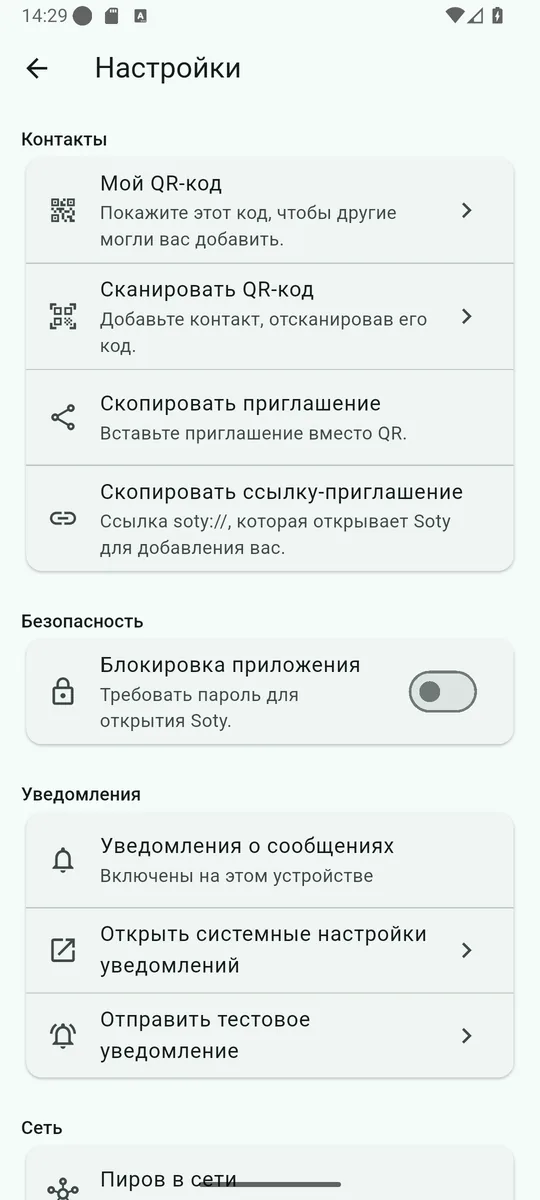
Show your own code through Settings → My QR code, scan theirs through Scan QR code. Without a camera the text invite works: Copy invite on your side and Import invite on theirs. The third way is manual: New chat → New chat and the X25519 key of the other side, optionally with a libp2p peer id and multiaddr.
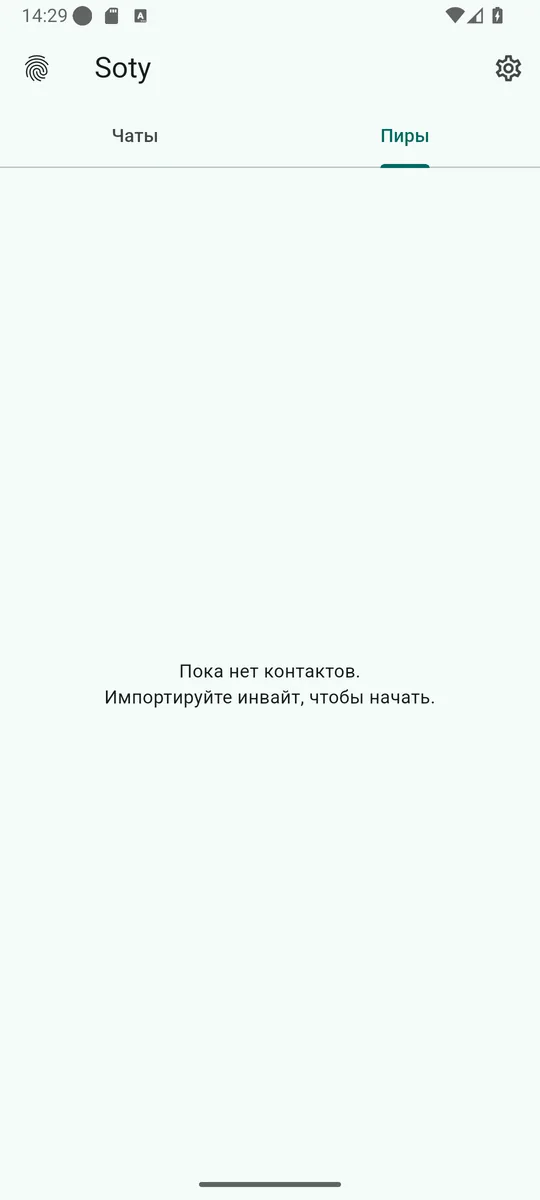
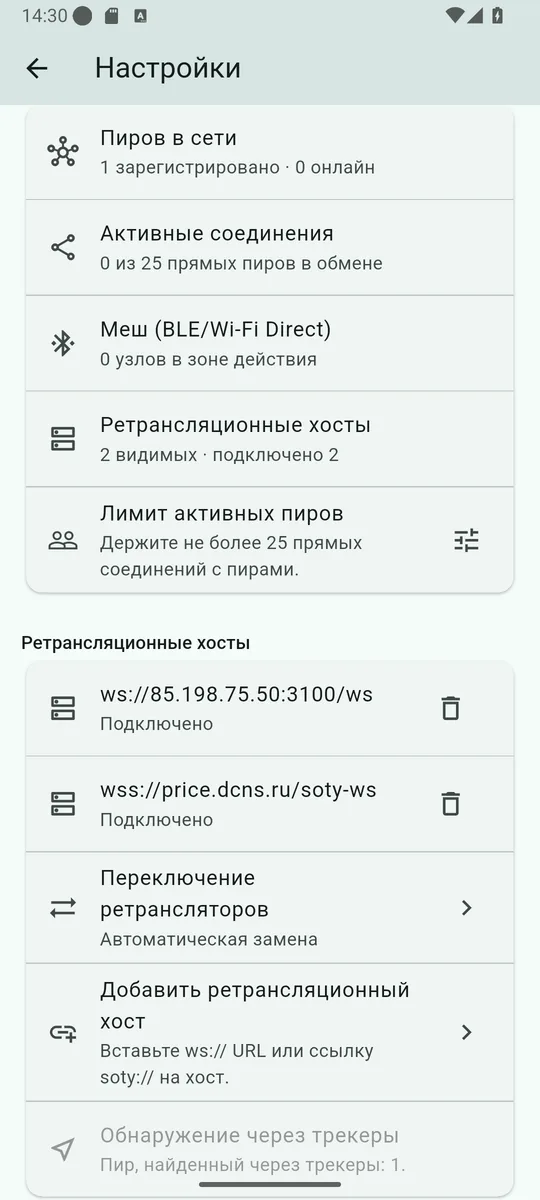
Settings → Network: how many peers are visible, how many direct connections are up, what the mesh reports and whether the relay nodes are connected. Two public project nodes are already in the build — they hold an envelope while the recipient is offline. Your own node is added right there with Add relay host: a soty://host link or a ws:// address.
A relay stores encrypted envelopes only, but its operator still sees who talks to whom. That is why hosts are added to a list by hand instead of being swapped in silently.
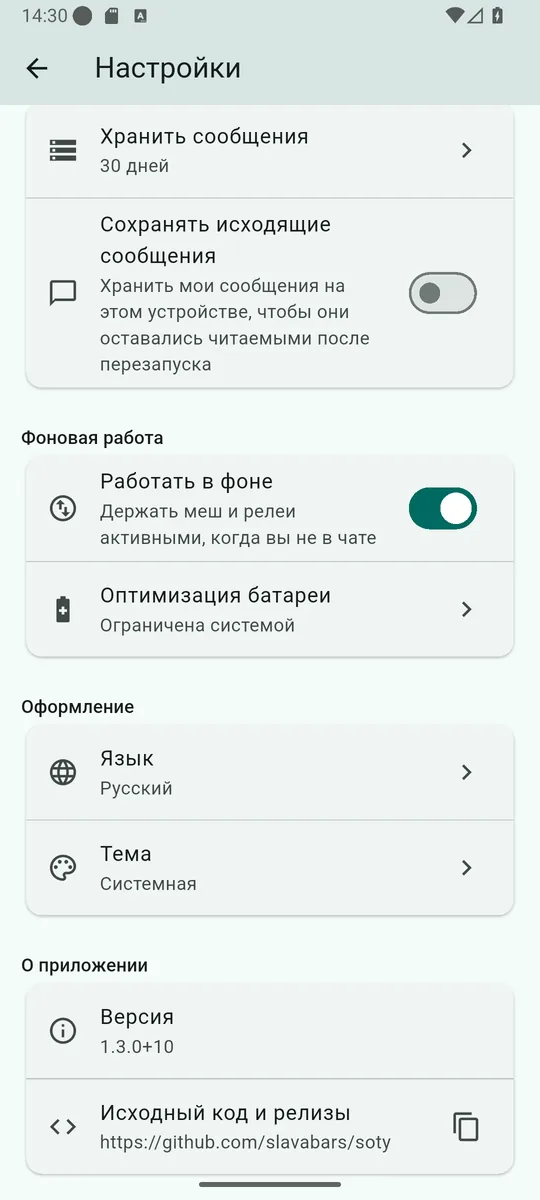
To receive messages while the app is closed, switch on Settings → Background work → Work in background and look at Battery optimisation: a restricted app is put to sleep together with its mesh and relays. The same screen decides how long the conversation stays on the device.
Not sure the notifications arrive? Tap Send test notification — it shows up at once when the system has not blocked them.
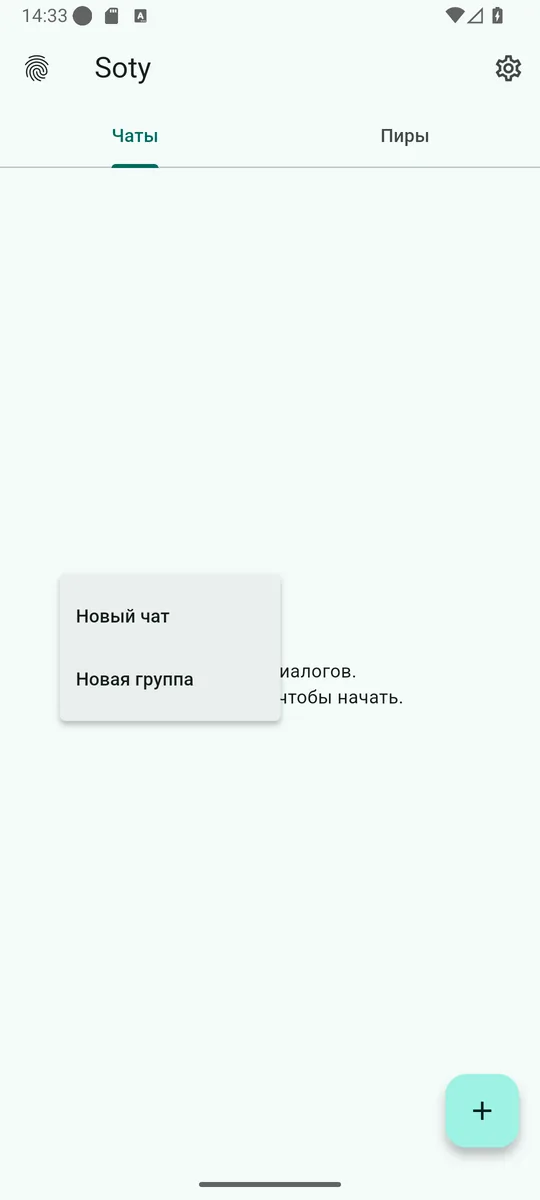
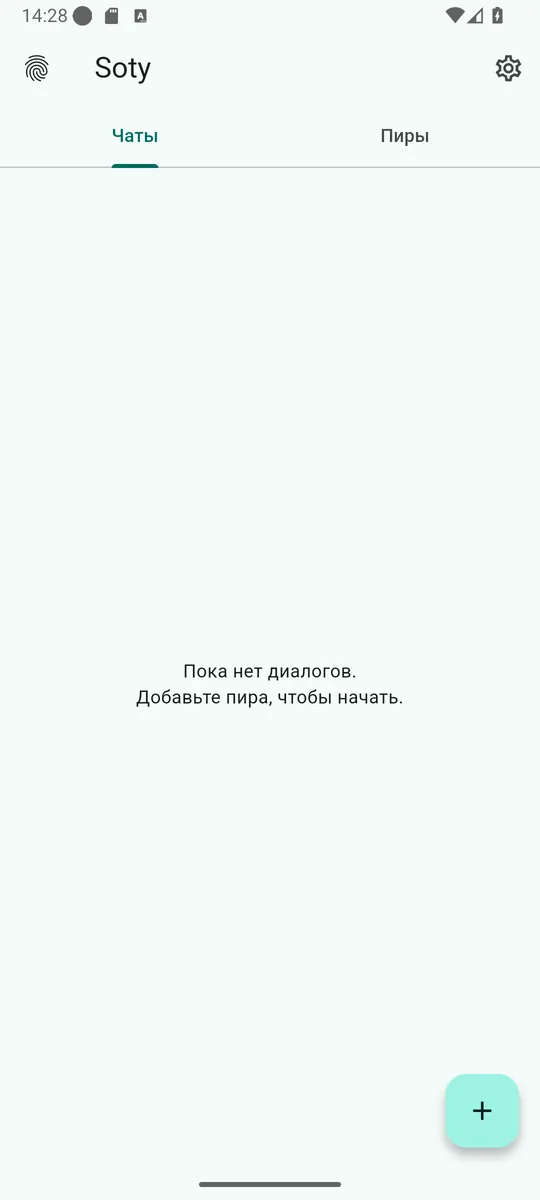
The Chats tab lists conversations, the button in the bottom right corner creates a new chat or a group. The other side may be offline: the envelope waits for them on a relay or with a neighbour in the mesh. Under a message you can see where it is: Sent, Delivered or Read.
Every release ships a SHA256SUMS file. Download it next to the file you want and check that the bytes did not change on the way:
The same sums are printed in the release notes, so they can be compared by eye.
The places where an installation usually stumbles.
The permission is granted to one application at a time — the browser or the file manager you opened the file from. The dialog offers a shortcut to Unknown app sources; after that the installation can be repeated.
This is how the application says it did not get the camera permission. Grant it in the system settings, or add the contact as text: an invite and an X25519 key work without a camera.
Open Settings → Notifications: the application shows its own status and, when the system blocked it, offers a way into the system settings. Send test notification checks the channel at once.
That is battery optimisation at work: the system puts the app to sleep together with its mesh and relays. The settings show the current state — unrestricted or restricted by the system — while the exemption is granted in the system battery settings.
Look at Settings → Network: a node may simply have become unreachable. Add your own, or switch on Relay switching → Automatic replacement so the application uses a relay it learned from the hosts.
Nothing: the keys and the conversation live in a local database and no copy exists on a server. Once the app is gone they cannot be recovered — the project makes no backups.
From here the application needs a second participant: show the QR code or forward the invite, and the conversation can start.